Announcement: My eQuals has a new website! Learn more about it here.

How to share your documents to an email address
You can easily share a document with anyone by email using the following steps:
Step 1: Log in to the learner portal at https://www.myequals.net.
Step 2: Navigate to the document page and locate the specific document you want to share. Click on the “SHARE” button in the Actions column.
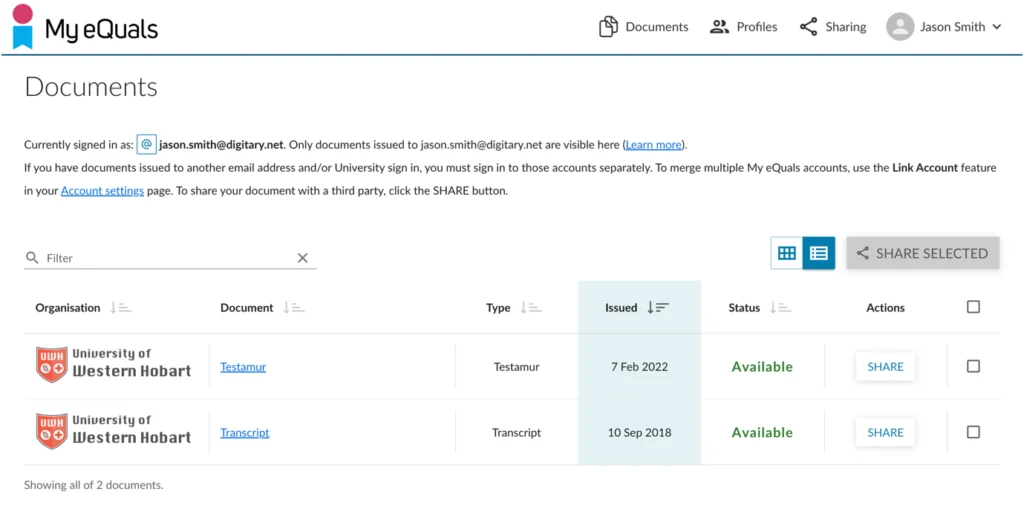
Step3: Select “Email”. Then click CONTINUE.
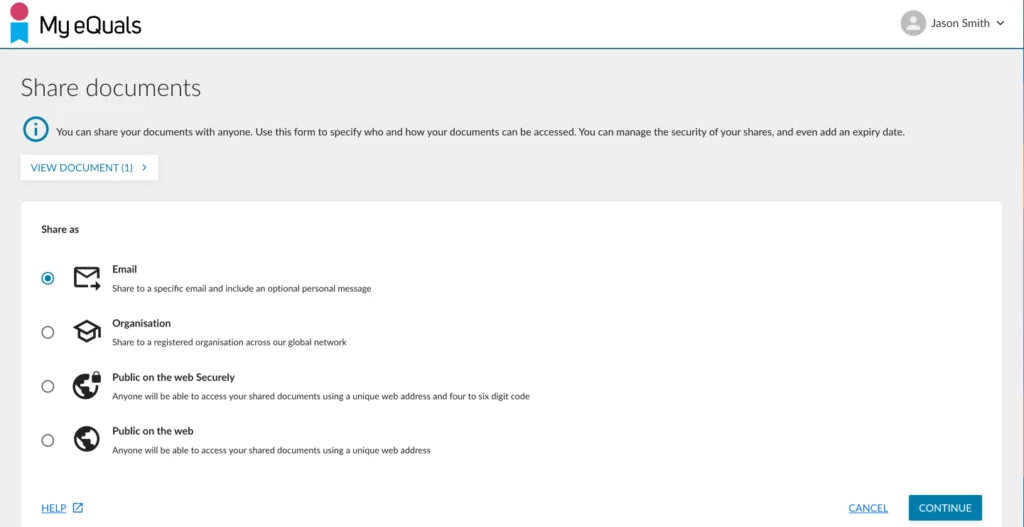
Step 4: You can enter the details required:
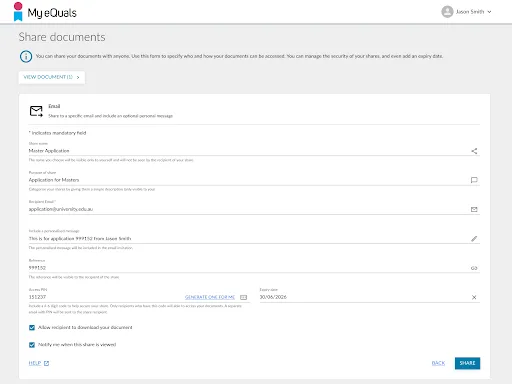
- Name your share. This name will only be visible to you and not to the recipient.
- Describe the purpose of the share for your own categorisation.
- Enter the recipient’s email address.
- You have the option to include a personalised message which will be included in the email invitation to your recipient.
- If you like, provide a reference that will be visible to the recipient.
- Set an access 4-6 digit PIN if desired. You can also click “GENERATE ONE FOR ME”. In either case, a separate email will be sent to your share recipient containing the PIN.
- You can add an expiry date to limit the visibility of the share until that date.
- The box to allow the recipient to download your document is checked by default; uncheck if you prefer.
- The box to notify you when the share is viewed is checked by default; uncheck if you prefer.
Then click on the “SHARE” button.
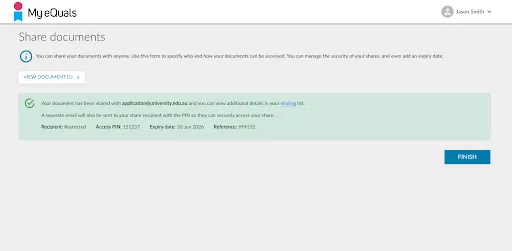
Step 5: Once you have completed the email share setup, an email containing a summary of the share will be sent to your recipient.
If a PIN has been set, a separate email containing the PIN will also be sent.
You can click the “FINISH” button to finish the process.
Please Note:
Share fails – You will be notified by email if a share fails for any reason to reach its destination. If you have used a share credit, it will be returned to you.